
How to Track Job Applications with the JobStacky Chrome Extension
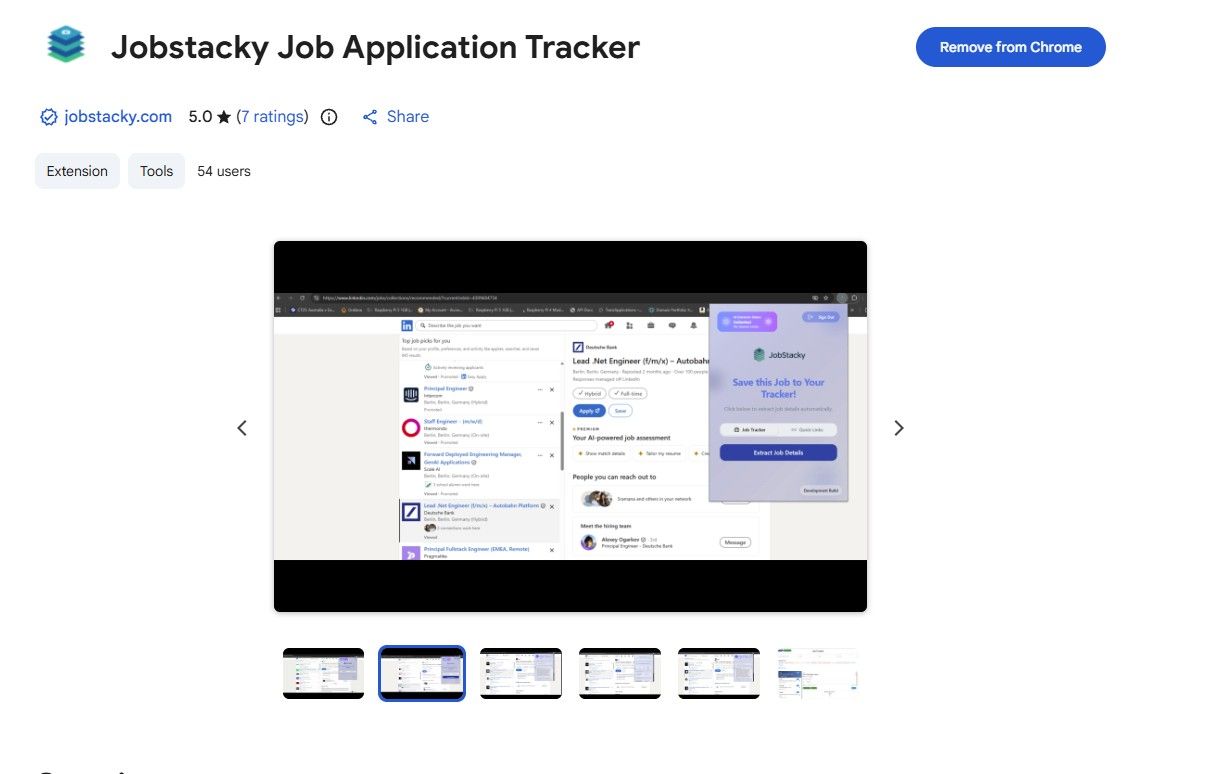
How to Track Job Applications with the JobStacky Chrome Extension
Tracking job applications usually means bouncing between browser tabs and a spreadsheet. The JobStacky Chrome extension skips that entirely. Job application tracking is the core of what it does: open it on any job listing and it pulls the details straight into your tracker, checks if you've already applied to that company, and saves you from applying twice without noticing.
You can install it here: JobStacky - Job Application Tracker
Here's how it works, step by step.
Extracting a Job
Step 1: Open a job listing
Go to any page that has a job description on it, a company careers page, a job board, wherever you found it.
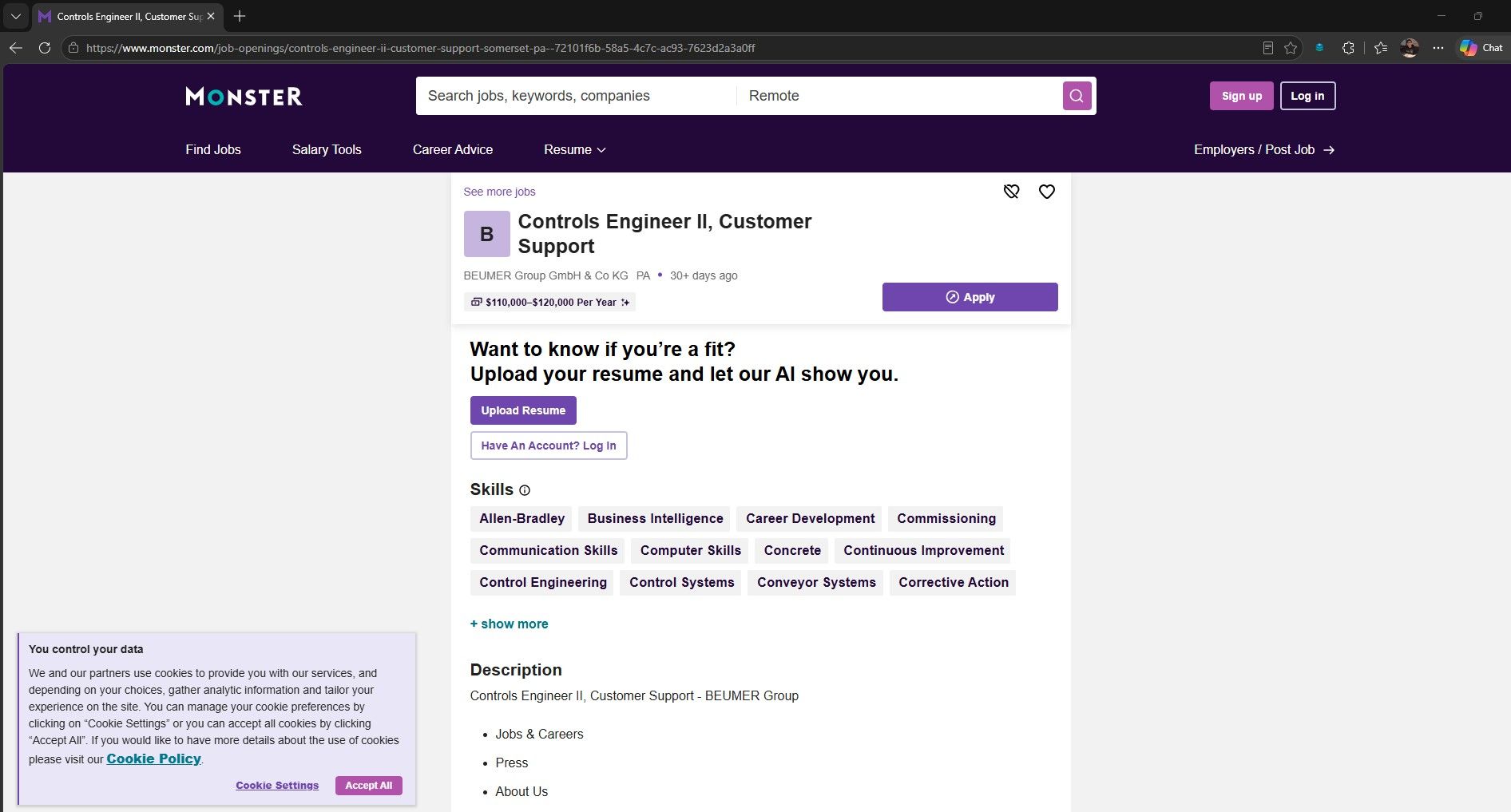
JobStacky Chrome Extenstion - Open a job post
Step 2: Open the JobStacky extension
Click the extension icon in your browser toolbar. It reads the page and pulls out the job details automatically.
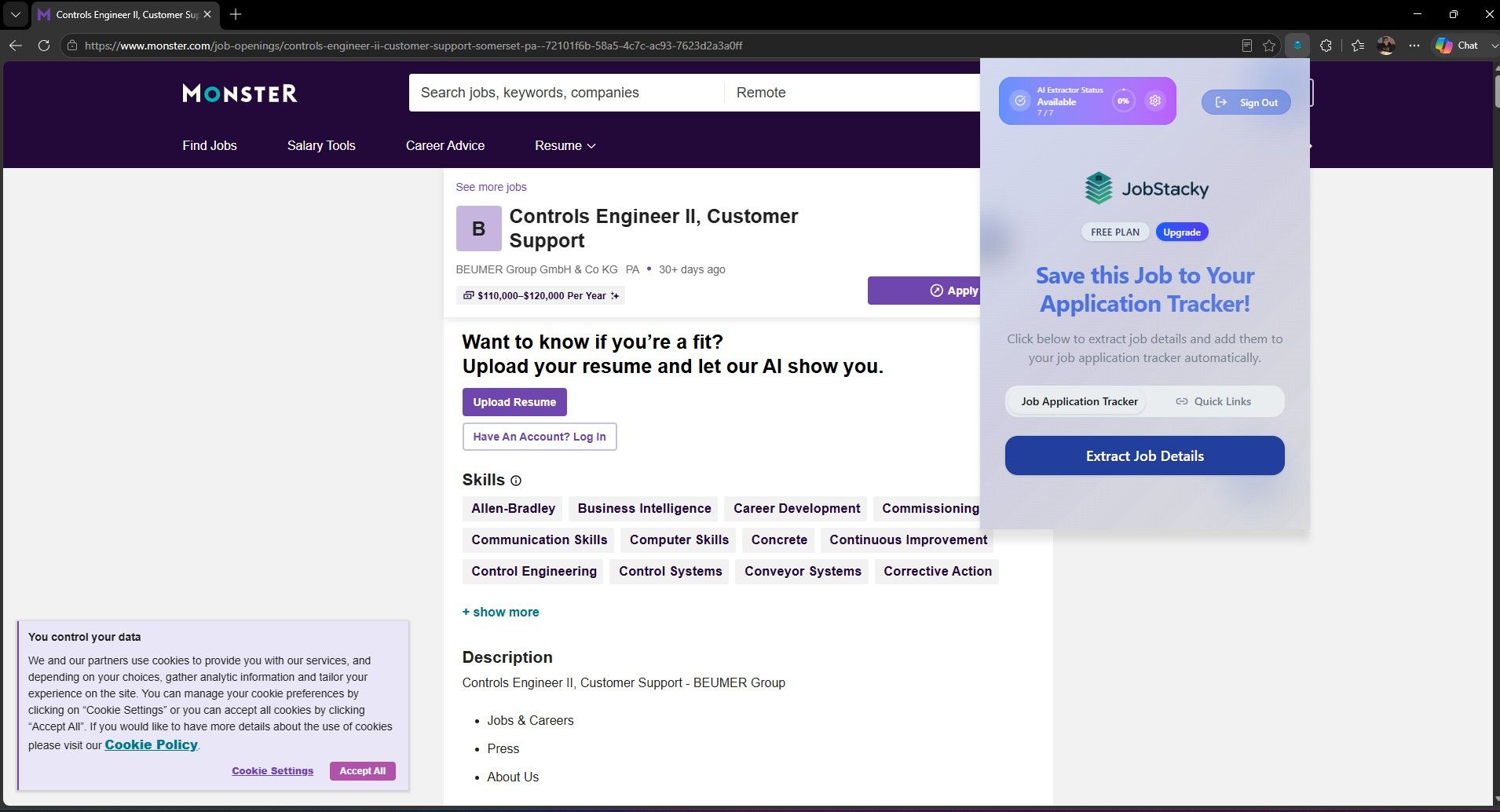
JobStacky Chrome Extension - Open Extension
Step 3: Review the extracted details
You'll see the job details laid out clearly: title, company, and the rest of the listing pulled from the page. Check that everything looks right before moving on.
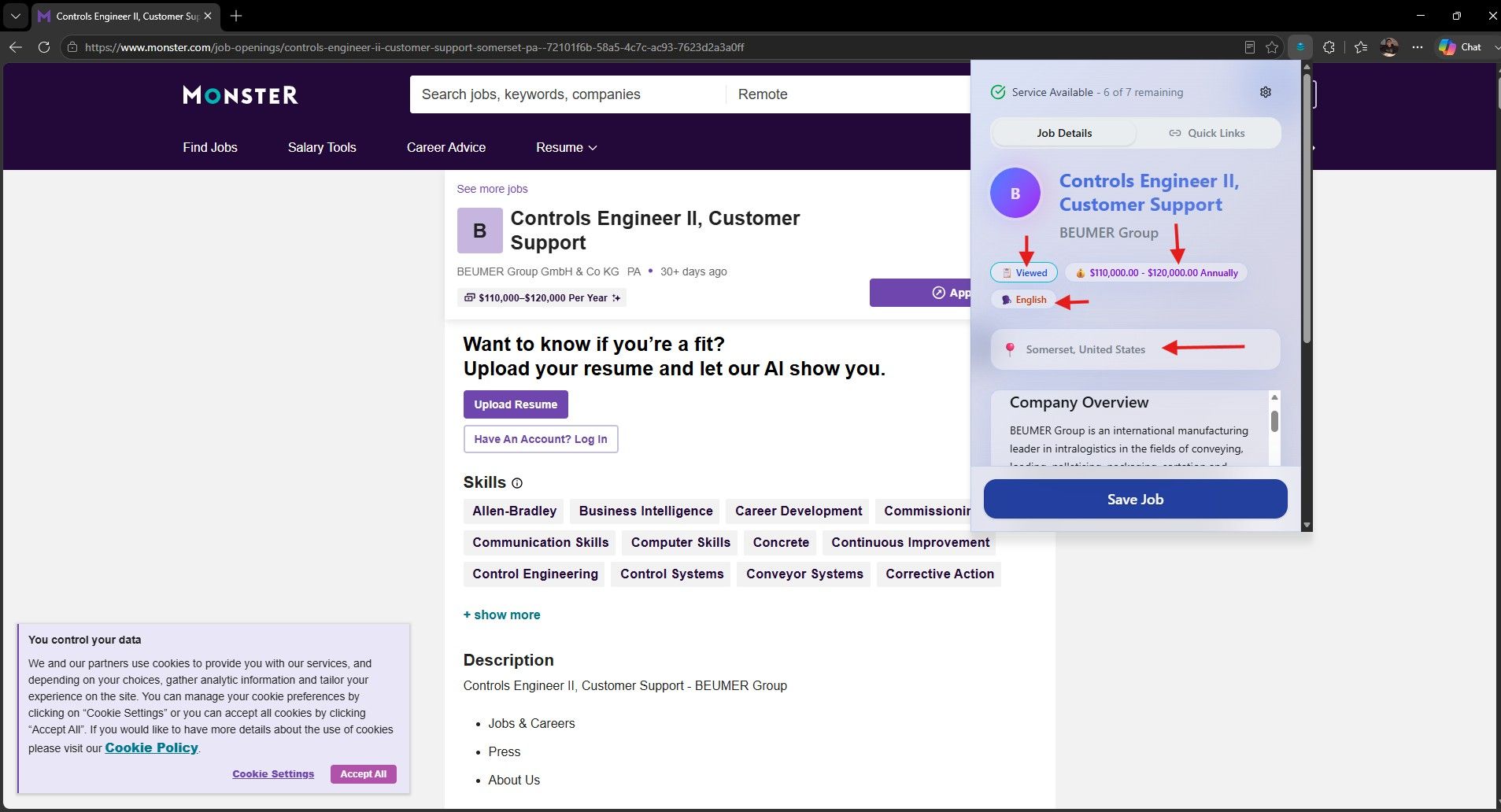
JobStacky Chrome Extension - Review Extacted Details
Saving and Tracking
Step 4: Save the job
Click save, and JobStacky checks your tracker in the background before adding anything.
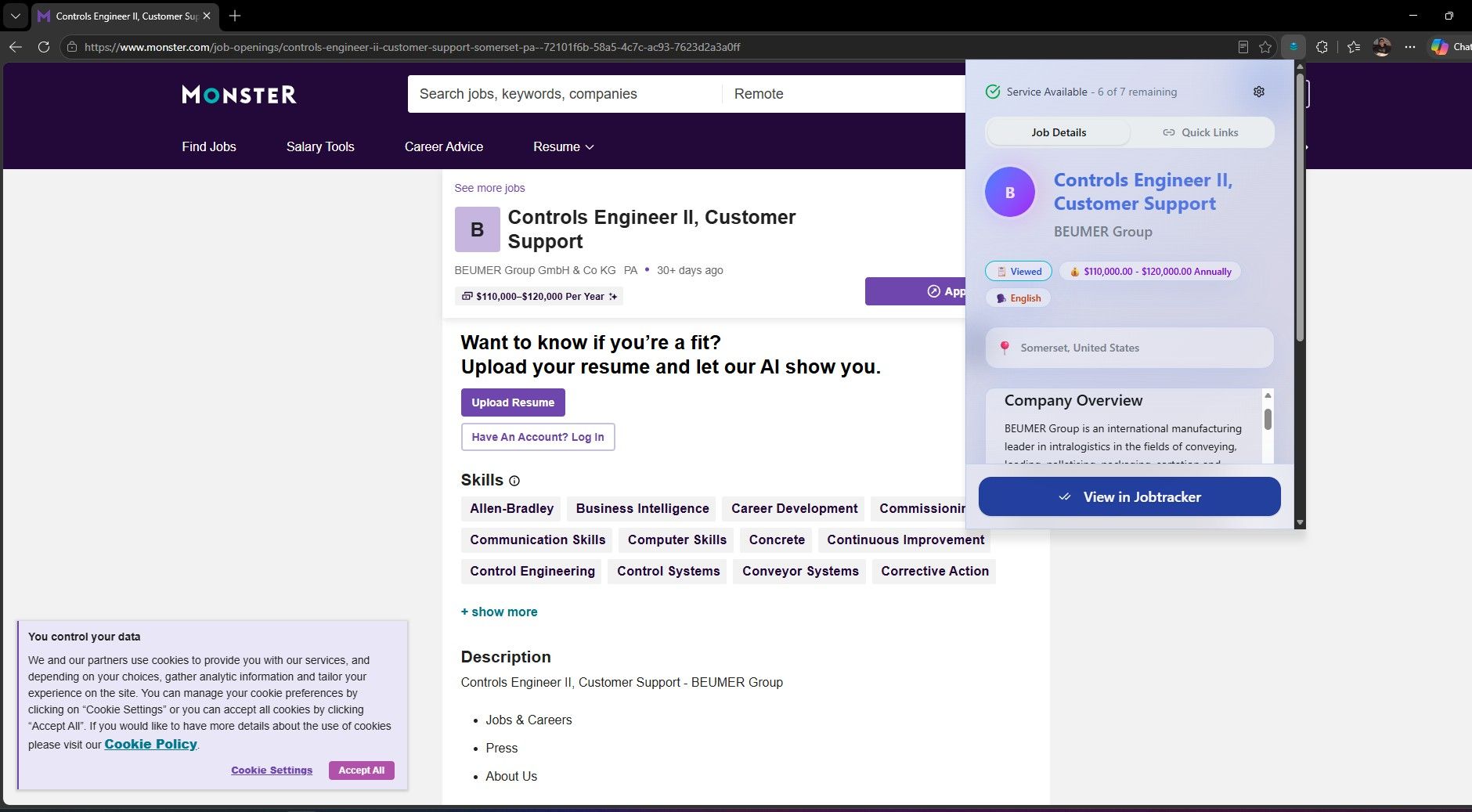
JobStacky Chrome Extension - Save it and view Job Application Tracker
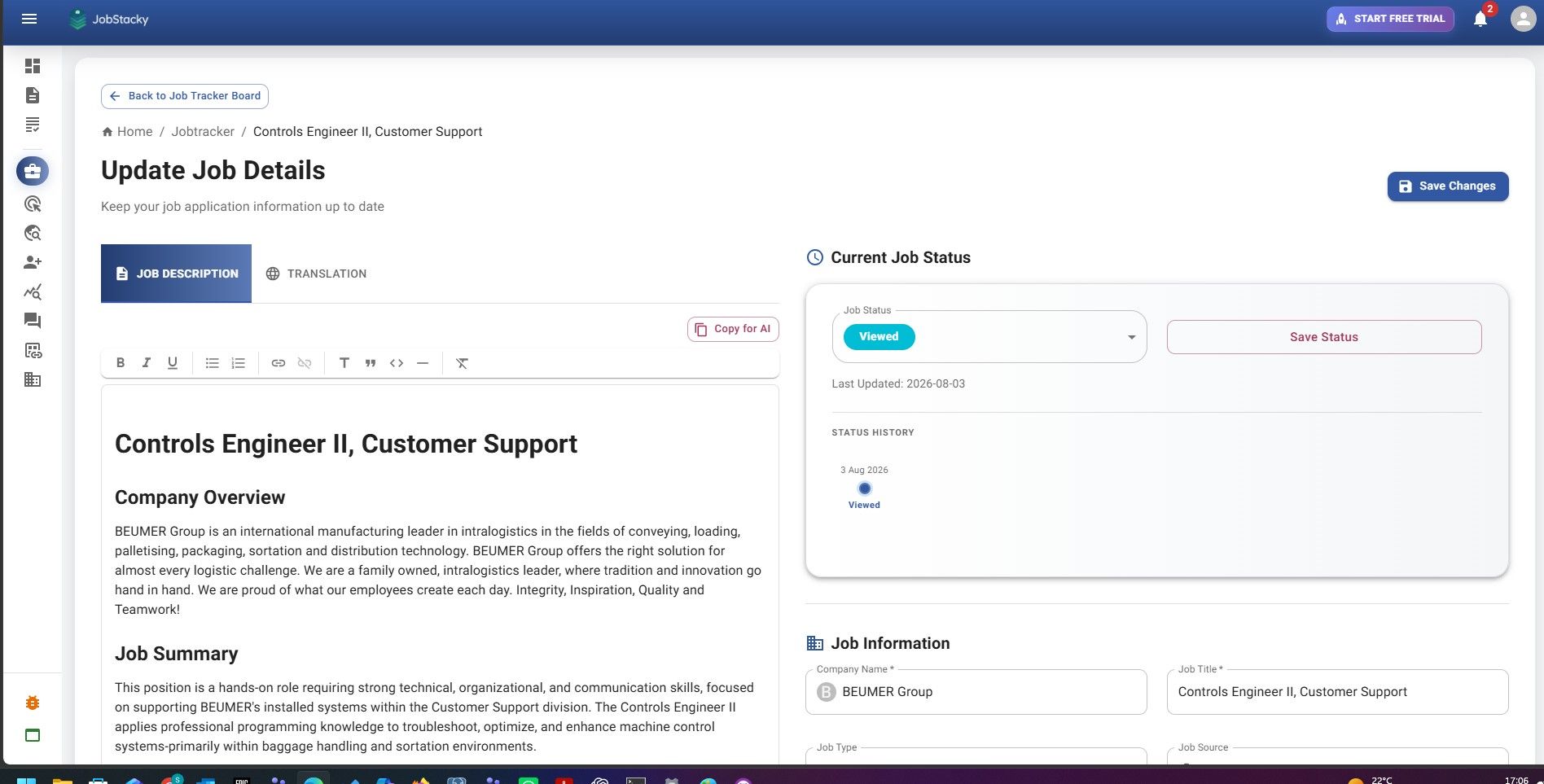
JobStacky Chrome Extension - View it or update the details in the Jobtracker page
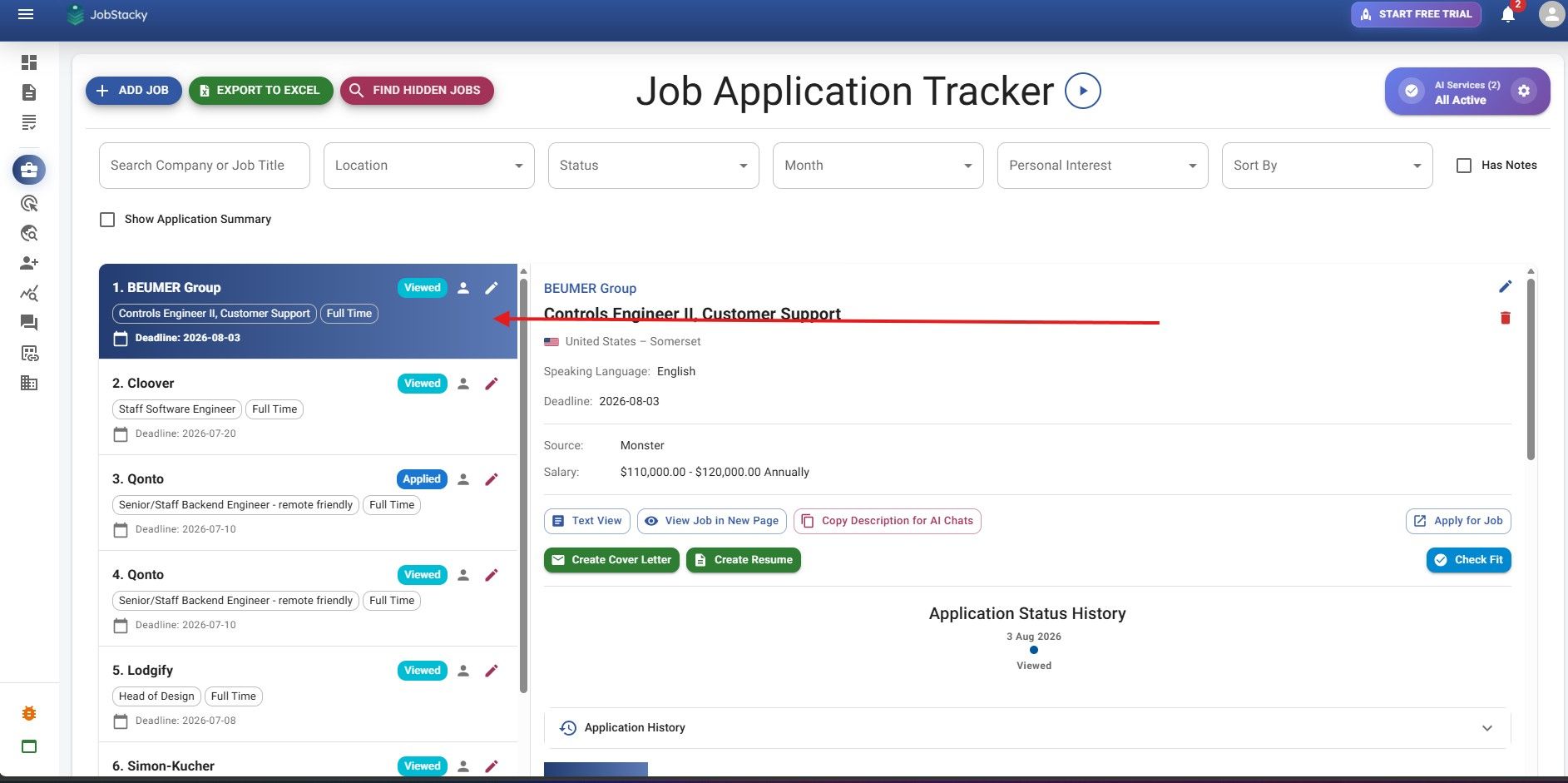
JobStacky Chrome Extension - You can also view it in the Jobtracker table view
Step 5: See your application history with that company
If you've applied to this company before, JobStacky tells you right away, how many times you've applied, and how many days it's been since your last application. That way you're not sending a second application into the void without realizing it.
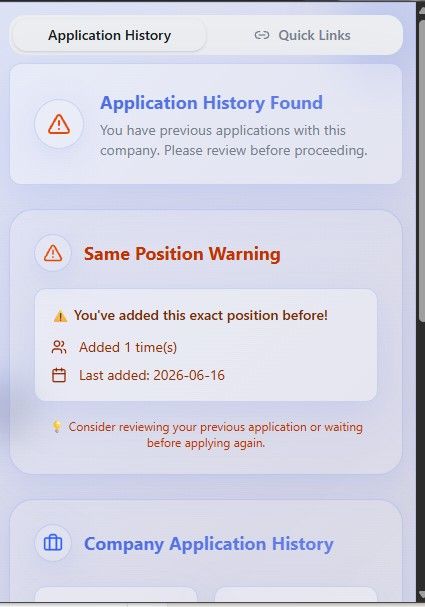
JobStacky Chrome Extension - View History of application for the same company or positions.
Step 6: Add it anyway if you want
Sometimes reapplying makes sense, a different role, enough time has passed, whatever the reason. The choice is yours. JobStacky just makes sure you're making that call with the full picture, not applying blind.
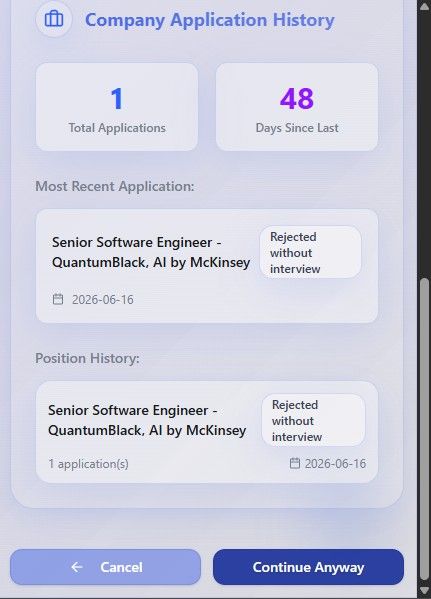
JobStacky Chrome Extension - You can select to add it or remove it
Step 7: Track a new job
If it's a fresh listing you haven't touched before, save it the same way and it gets added to your tracker as a new entry.
Checking Existing Tracking
Step 8: See if the job's already tracked
Open the extension on a listing you've already saved before, and JobStacky recognizes the link. It shows you that the job is already sitting in your tracker instead of letting you add a duplicate.
Step 9: Check the job status
If you've updated the status yourself, interviewing, rejected, offer, whatever stage you're at, that shows up here too. So you get an accurate read on where things stand without having to open your tracker separately.
Frequently Asked Questions
Does the extension work on every job site?
Mostly, yes. It's built to read plain job description pages, so it works well on most company career pages and job boards.
Where does it struggle?
The main gaps are pages that load the job description inside an iframe, and job listings that are PDFs. Both make it harder for the extension to read the content directly.
What if extraction fails or my usage limit is hit?
You can always fall back on the web-based job tracker and add the job manually. It's the same tracker, just without the auto-extraction step.
What happens when extraction fails?
Every failed case gets logged as a support ticket on our end. We go through these, try to reproduce the issue, and work on fixing it.
That's the whole flow: extract, save, and let JobStacky keep track of who you've applied to and when, so you don't have to hold it all in your head.
What happens when I don’t save the job after extraction?
The AI usage is counted as it was able to get the data from the page . Again we recommend switching to pro tier or pro plus tier.
Can I see how many days ago I applied to the job?
Yes, you can see that, and also the status of the tracked jobs is visible.
Can I add notes to it?
Yes, you can add notes directly on the website and not via the JobStacky Chrome extension.
Can I use LinkedIn Optimization?
Yes, you can use the LinkedIn Optimization feature from the JobStacky Chrome Extension. Although it is currently in beta, there may be instances where it does not work as expected or the optimization may fail.
Keywords
JobStacky Chrome extension, job application tracker, Chrome extension for job search, extract job details, job description extractor, track job applications, duplicate application checker, job application history, application status tracker, job tracker extension, career tools Chrome extension, job search browser extension, applied to company before, job tracking automation
Track Every Job Application with JobStacky
Install the JobStacky Chrome Extension to save jobs from supported job portals, automatically import job details, and manage your entire job search from one dashboard.
Install the Chrome Extension